Mockup Images for Newsletter Product Announcements: A Practical Guide
A product newsletter competes with a crowded inbox. The subject line gets the open, but the first visual often decides whether the reader keeps reading. A polished mockup image can make a product announcement feel more professional, more concrete, and easier to understand.
Why newsletters need better product visuals
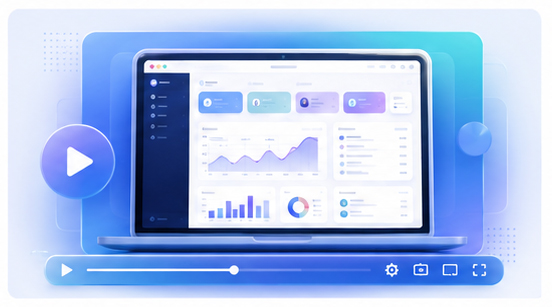
Many newsletters use either plain text or a raw screenshot. Plain text can feel dry, while raw screenshots can look unfinished on mobile email clients. A mockup gives the announcement structure. It frames the product screen, adds visual depth, and makes the update feel intentional.
This is especially helpful for SaaS products, AI tools, online editors, and mobile apps where the interface is the main evidence of progress.
Choose one message per image
A newsletter image should not explain everything. It should support the main announcement. If the email is about a new editor feature, show the editor screen. If it is about a redesigned dashboard, show the dashboard. If it is about a mobile release, use a phone mockup.
Trying to show every feature in one image can make the visual crowded. A focused image is usually more effective.
Create newsletter mockups quickly
Use the Animock editor to upload your product screenshot and turn it into a polished mockup for email. Because the workflow runs in the browser, it is practical for recurring newsletters where the product screen changes often.
You can export a wide header image for the top of the email, a smaller section image for feature details, or a square version for repurposing the same announcement on social media.
Design for mobile inboxes
Many readers open newsletters on mobile devices. Keep the product screen large enough to recognize. Avoid tiny UI text, complex multi-device scenes, or overly wide layouts that become unreadable when scaled down.
Use clean backgrounds and high contrast between the mockup and the surrounding email design. The goal is to make the product immediately visible.
Repurpose the same visual
A good newsletter image should not be used only once. After sending the email, reuse the mockup in a changelog post, launch tweet, LinkedIn update, blog article, or customer community post. This gives more value to the visual production effort.
Build a repeatable announcement style
Use a consistent style for all product newsletters. Similar lighting, device frames, and background gradients help readers recognize your updates over time. Consistency also makes your brand feel more mature.
Preparing your next product announcement email? Open the Animock online editor and create a newsletter-ready mockup from your latest screenshot.
A strong newsletter visual does not need to be complex. It needs to make the update clear, credible, and easy to share.