
How to Create Realistic 3D Product Mockups Online Without Photoshop
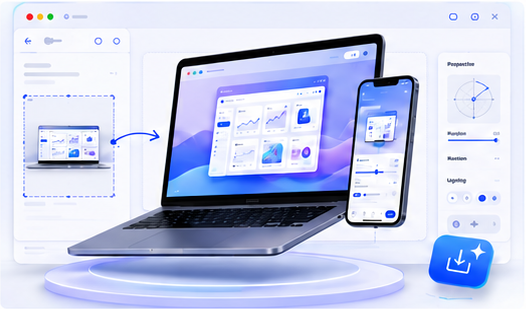
A realistic product mockup can instantly make a landing page, launch post, investor deck, or social media preview look more credible. The challenge is that many founders, creators, and marketers do not want to spend hours adjusting Photoshop smart objects, lighting layers, shadows, and export settings. Animock is designed for a faster path: upload your screen, place it into a clean 3D mockup scene, adjust the angle and composition, and export a polished visual directly from the browser.
Why 3D mockups improve product presentation
Flat screenshots explain what your product does, but 3D mockups help people understand how it feels. A mobile app shown inside a phone frame, a web dashboard placed on a laptop, or a browser preview floating in a soft studio scene can make the same interface feel more complete and easier to trust.
For SaaS products, AI tools, mobile apps, creator tools, and digital services, mockups work especially well because they add context without requiring a real photo shoot. You can create consistent visuals for a homepage hero, blog cover, email campaign, product announcement, and social post from the same source screenshot.
A simple online mockup workflow
Start with a clean screenshot or exported design. Crop unnecessary browser bars, remove private data, and make sure the interface is sharp. A high-resolution input gives the mockup editor more detail to preserve when the image is transformed onto a 3D surface.
Next, choose a device or browser scene that matches the story you want to tell. A phone mockup is ideal for app onboarding, a laptop mockup works well for dashboards, and a multi-device layout is useful when you want to show responsive design. In Animock, you can begin from the online editor, place your image, and adjust the scene without managing a heavy design file.
Make the mockup look more premium
The most common mistake is overloading the scene. A good mockup needs strong focus: one hero interface, generous spacing, soft contrast, and a background that does not fight with the product. Use shadows and reflections to add depth, but keep them subtle enough that the screenshot remains readable.
Color consistency also matters. If your product uses blue, purple, or green accents, let the background support that palette instead of introducing too many unrelated colors. This makes the final image easier to reuse across your website and marketing channels.
Where to use your finished mockup
A single well-made mockup can be repurposed across many high-value touchpoints. Use it as the hero image on your website, the preview image in a blog article, the first slide in a launch carousel, or the visual anchor in a Product Hunt post. The more consistent your mockups are, the more recognizable your brand becomes.
For SEO, mockup-based blog covers also help improve content quality signals. They make articles feel more intentional, increase visual engagement, and give readers a clear understanding of the topic before they read the first paragraph.
Ready to build your next visual? Open the Animock editor and create a polished mockup in minutes.
Animock helps you skip complex design software while keeping the final output clean, modern, and presentation-ready.