Browser Mockup Generator for Chrome Extension Marketing Pages
Chrome extensions live inside the browser, so the browser frame is part of the product story. A raw cropped screenshot can show the interface, but it often loses the context that makes the extension understandable. A browser mockup generator helps present the extension in the environment where users will actually experience it.
Why Chrome extension visuals are different
Unlike full web apps, many extensions depend on context. The product may appear as a popup, sidebar, floating panel, toolbar action, or injected workflow on top of another website. If you crop too tightly, visitors may not understand how the extension fits into their browsing routine.
A browser mockup gives that context back. It can show the webpage, the extension panel, and the interaction area together in one polished image.
Choose the right extension state
The best visual usually shows the extension actively solving a problem. If it summarizes pages, show the summary next to an article. If it captures leads, show the capture panel beside a website. If it improves productivity, show the workflow in progress. Avoid showing only the settings page unless the article is about configuration.
The goal is to help visitors immediately understand what the extension does and why it is useful.
Create a browser mockup without complex design software
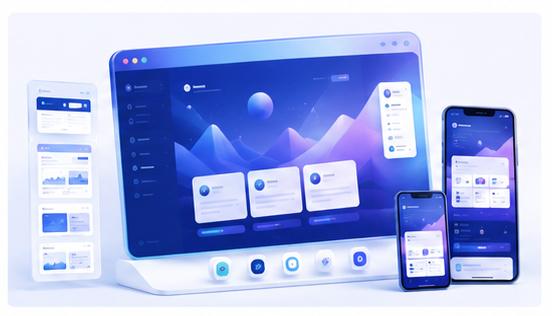
Open the Animock editor, upload your extension screenshot, and place it into a browser-style 3D mockup. You can adjust composition, spacing, perspective, and background to make the image work for your landing page or tutorial article.
This browser-based approach is practical because extension teams often update UI details quickly. When the popup changes, the marketing image can be refreshed without rebuilding a Photoshop template.
Make the interaction readable
Extension screenshots can contain small UI elements. Keep the main extension panel large enough to read. If the full webpage is important, use it as background context but keep the extension itself as the visual focus. If the panel is too small, the mockup may look nice but fail to explain the product.
Use clean backgrounds and soft shadows. Avoid adding too many floating elements that distract from the actual browser workflow.
Use browser mockups across the funnel
A single strong browser mockup can support your homepage, Chrome Web Store listing graphics, blog covers, onboarding articles, feature updates, and social media posts. For SEO content, the mockup can show the exact workflow described in the article, which makes the content more useful and more trustworthy.
Build a consistent visual library
As your extension grows, you may need visuals for multiple use cases. Create a consistent style for popup views, sidebar views, and before-and-after workflows. This helps users recognize the product across different pages and announcements.
Need a faster way to create Chrome extension marketing visuals? Use the Animock online editor to turn browser screenshots into polished mockups for your website, blog, and launch campaigns.
When the visual shows both the product and its real browsing context, visitors can understand the extension faster and trust the workflow more easily.